Introduction
Gdynia Dive help explains how to create an account, sign up for a course or a trip and keep track of your sign-ups on the website.
How to use the help
Chapters are listed in the navigation on the left. Search opens with the Search button or the Ctrl+K shortcut.
This help is for the centre's clients. It describes the client profile, the part of the website where you:
- sign up online for courses, packages, trips and services;
- change the date, cancel and buy extra services in the details of your sign-ups;
- write to the Office;
- sign the contract with an SMS code;
- upload documents and download copies of contracts in the details of a sign-up;
- check instalments and bank transfer details in the details of a sign-up;
- send equipment for service.
The website and the login screens are available in English. The client profile is in Polish, so for the profile this help gives names of buttons and fields in English, followed by the Polish name you will see on screen, e.g. My details (Moje dane).
Client profile at a glance
Open the profile with the My profile link in the website menu. If you are not logged in, the website asks you to log in or to create a profile (chapter Account).
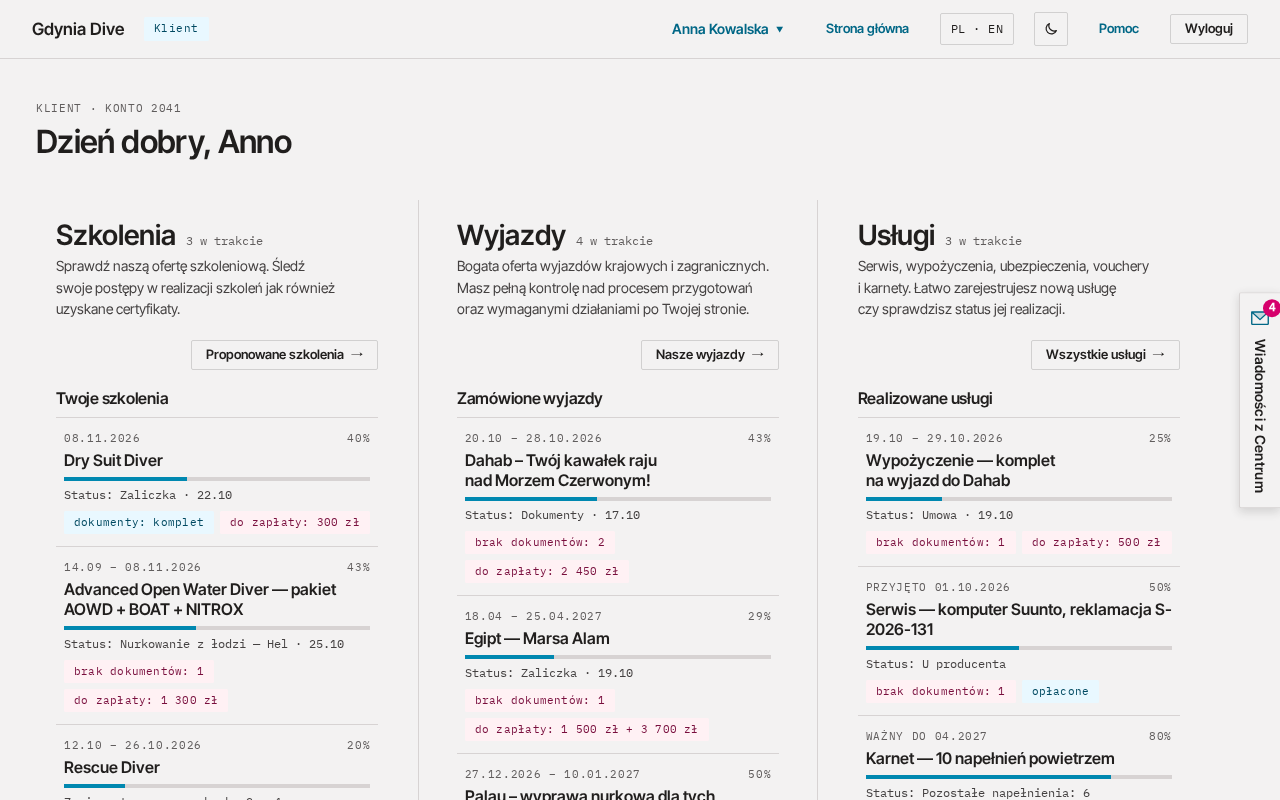
After you log in, the profile opens on the start screen. The profile has no side menu. From the top you see:
- A greeting with your account number. Below it, one sentence says which courses and trips you take part in and how many new messages from the Centre you have. Click a name to open the course or trip details, the number of courses or trips to open their list, or the number of messages to open the messages from the Centre.
- Three columns: Courses (Szkolenia), Trips (Wyjazdy) and Services (Usługi).
On a narrow screen (e.g. a phone) the columns are stacked one below another.
Start screen columns
From the top, each column (Courses, Trips, Services) shows:
- a header with the category name, the number of items in progress (e.g. "2 in progress", 2 w trakcie) and a short description;
- a button to the category offer: Suggested courses → (Proponowane szkolenia →), Our trips → (Nasze wyjazdy →) or All services → (Wszystkie usługi →). It opens the category view with the offer you can sign up for (Online sign-up). On a phone the view shows the offer straight away;
- the list of items in progress: dates, progress percentage with a bar, the status and tags, e.g. "missing documents: 1" (brak dokumentów: 1), "to pay: 1 200 zł" (do zapłaty: …) or Unfinished sign-up (Zapis niedokończony). A click on an item opens its details straight away (Courses, trips and services). With no items you see "Nothing in progress." (Nic w trakcie.).
Completed items are in the category view, in the My courses (Moje szkolenia, or trips, services) column. Missing documents and amounts to pay are shown in the tags of each item.
Category view
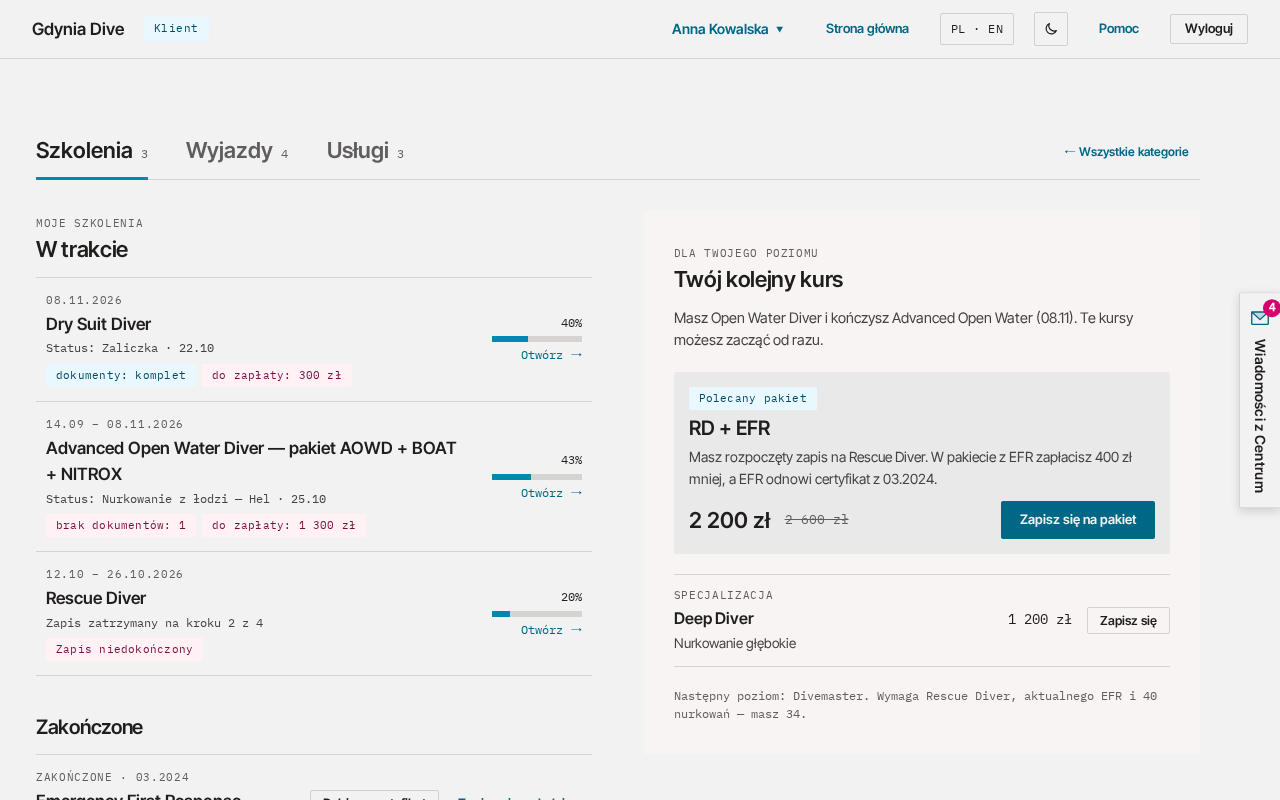
The category view has the Courses (Szkolenia), Trips (Wyjazdy) and Services (Usługi) tabs at the top (with the number of items in progress) and the ← All categories (← Wszystkie kategorie) button, which takes you back to the start screen. Below the tabs there are two columns:
- On the left are My courses (Moje szkolenia, or trips, services): the In progress (W trakcie) list with the next step and the Open → (Otwórz →) button, and Completed (Zakończone) below it. Click an item to open its details (Courses, trips and services).
- On the right is an offer picked for you, e.g. the next course for your level or upcoming trips. The button next to an item (Sign up, Zapisz się; Book, Zarezerwuj; Order, Zamów) opens the sign-up wizard (Online sign-up).
On a phone you see one column at a time. Switch between them with the buttons above the list, e.g. My courses (Moje szkolenia) and Next course (Kolejne szkolenie).
The browser's Back button returns to the previous view, e.g. from the category view to the start screen.
Account menu
Your name in the page header is the account menu button. It has:
- My details (Moje dane): participant details filled in at later sign-ups (My details);
- Write to the Office (Napisz do Biura): a message to the Office in a panel at the side of the page (Contact).
Close the menu with the Esc key or a click outside it.
Messages from the Centre
On every profile screen, at the right edge of the window, there is a Messages from the Centre (Wiadomości z Centrum) tab with an envelope icon. It holds messages from the centre, e.g. about a missing document, an additional payment or a confirmed sign-up. Every e-mail we send you about a sign-up lands here too.
The number on the envelope is the number of new messages. Click the tab to open the list at the side of the page:
- messages are newest first, each with a date, a title and the text;
- new messages have a new (nowa) tag;
- opening the list marks all messages as read, so the number on the envelope disappears. The new tags stay until you close the list.
Close the list with ✕, the Esc key or a click outside it. The number of new messages refreshes by itself every minute, also without reloading the page.
Where to find what
| You are looking for | Where |
|---|---|
| courses and packages | Courses (Szkolenia) column and tab |
| trips | Trips (Wyjazdy) column and tab |
| service, insurance, vouchers, passes, rentals | Services (Usługi) column and tab (Services and equipment service) |
| documents and contract copies | item details, Documents (Dokumenty) section (Documents) |
| instalments and bank transfer details | item details, Payments (Płatności) section (Payments) |
| signing up for a new item | right column of the category view or a link from an e-mail (Online sign-up) |
| your participant details | account menu, My details (Moje dane) |
| messages from the centre | Messages from the Centre (Wiadomości z Centrum) tab at the right edge of the window |
Some forms (e.g. Write to the Office, Napisz do Biura, or the offer details) open in a panel at the side of the page. Close it with Cancel (Anuluj) or ×, the Esc key or a click outside the panel.