Documents
The documents of each sign-up are in its details, in the Documents (Dokumenty) section: files you need to upload, the contract to sign, the copy of the signed contract and materials from the Office. Missing documents block participation, so we remind you about them automatically.
Open the details of a sign-up from the start screen or from the Courses (Szkolenia), Trips (Wyjazdy) or Services (Usługi) category (click an item in progress). An item with missing documents has a tag, e.g. "missing documents: 1" (brak dokumentów: 1).
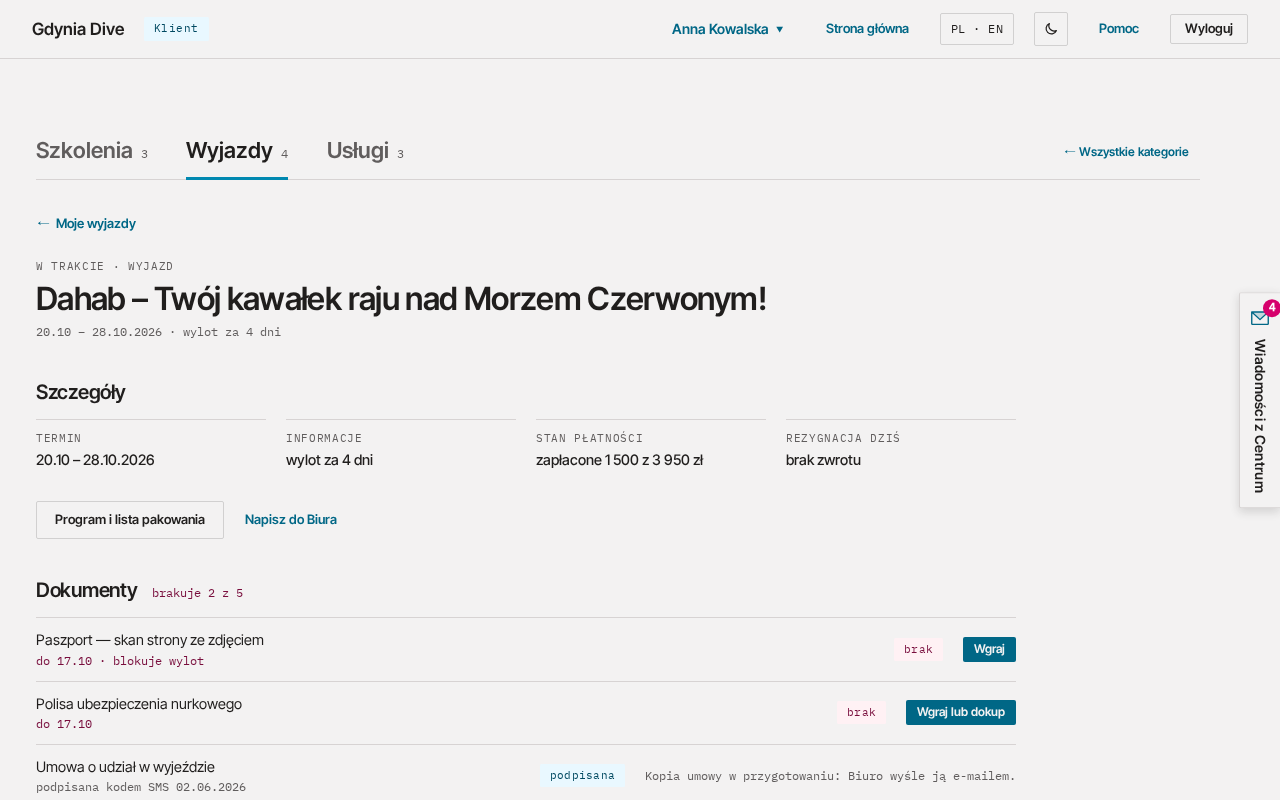
Documents section
Next to the heading there is a summary: "1 of 3 missing" (brakuje 1 z 3) or "complete" (komplet). It counts only the documents the item requires. Missing documents come first, then ready ones, and documents you added yourself come last (see Another document). Each row has a name, a note, a tag and a button:
| Tag | Meaning | Button |
|---|---|---|
| missing (brak) | the file has not been uploaded yet or was rejected; the note gives the deadline, e.g. "by 17.10 · blocks the flight" (do 17.10 · blokuje wylot) | Upload (Wgraj; for a policy Upload or buy, Wgraj lub dokup) |
| to sign (do podpisu) | the sign-up contract is waiting for your signature | Sign (Podpisz): opens step 2 of the wizard |
| signed (podpisana) | the copy of the signed contract, note "signed with SMS code" (podpisana kodem SMS) with the date | Download (Pobierz) |
| sent (przesłany) | a file you uploaded, note "sent" (przesłano) with the date | Download (Pobierz) |
| ready (gotowe) | a document from the Office, e.g. a programme or a certificate | Download (Pobierz) |
| to check (do sprawdzenia) | a document you added; the Office has not checked it yet | Download (Pobierz) |
| accepted (przyjęty) | a document you added; the Office accepted it | Download (Pobierz) |
| to correct (do poprawy) | the Office rejected a document you added; the note gives the reason, e.g. "Office: illegible scan" (Biuro: nieczytelny skan) | Upload again (Wgraj ponownie) |
When the item needs no documents and you have added none, the section shows "This item does not require any documents." (Ta pozycja nie wymaga dokumentów.). Below the list there is always the Add another document (Dodaj inny dokument) button.
Required files
The list depends on the item. Most often it is:
- courses and packages: the PADI medical statement and a copy of your diving certification;
- trips: a scan of the passport photo page, a diving insurance policy and the medical statement.
You see the exact list for a sign-up in the Documents section of its details and in step 3 of the wizard.
Uploading a file
- In the details of the sign-up click Upload (Wgraj) in the document's row.
- Choose a file from your computer or phone.
- Wait for the message "File uploaded. The Office will check it and let you know if anything needs correcting." (Plik wgrany. Biuro sprawdzi go i da znać, jeśli coś trzeba poprawić.)
The uploaded file moves to the ready documents with the "sent" (przesłany) tag. If the Office rejects it, the row goes back to the missing documents and we let you know the reason by e-mail.
Another document
You can give the Office a document the item does not require, e.g. a medical certificate or your logbook. Do not send it by e-mail: add it in the details of the item it concerns.
- In the Documents section click Add another document (Dodaj inny dokument). The "Add document" (Dodaj dokument) panel opens, with this item in the Concerns (Dotyczy) field.
- Choose the Type (Rodzaj). The default is "Other" (Inny): then enter the Document name (Nazwa dokumentu), e.g. "medical certificate". For other types the name is optional.
- If the document has an expiry date, enter it in Valid until (Ważny do).
- Choose the file and click Send to the Office (Wyślij do Biura).
The document appears at the end of the list with the "to check" (do sprawdzenia) tag. The Office checks documents within 1 working day. After the decision the tag changes to "accepted" (przyjęty) or "to correct" (do poprawy). With "to correct" the note gives the reason, and you get the message "Document to correct" (Dokument do poprawy) in Messages from the Centre (Wiadomości z Centrum). Click Upload again (Wgraj ponownie): the same panel opens with the document's type and name. The new file replaces the rejected one on the list and goes to the Office again.
If you choose a type the item requires and is still missing (e.g. a passport for a trip), the file goes straight to that requirement, as with Upload (Wgraj).
Formats and limits
| Rule | Value |
|---|---|
| formats | PDF, JPG, PNG or WEBP |
| size of one file | up to 10 MB |
| files for one document | at most 5 |
| all your files together | at most 200 MB |
If the Office rejects a file, you can upload a new one. If you run out of space, write to the Office and they will delete unnecessary files.
Consent to health data
The medical statement contains health data. Before the first upload, tick the consent:
I consent to the processing of data about my health from the medical statement in order to assess contraindications to diving (Art. 9(2)(a) GDPR). I can withdraw the consent at the Office. (Wyrażam zgodę na przetwarzanie danych o moim zdrowiu z oświadczenia zdrowotnego, aby ocenić przeciwwskazania do nurkowania (art. 9 ust. 2 lit. a RODO). Zgodę mogę wycofać w Biurze.)
You withdraw the consent at the Office. We then delete your medical statements from all your sign-ups, and those documents go back to the "missing" (brak) status. The next time you upload one, you need to tick the consent again.
Contracts and copies
After signing, a PDF copy of the contract is sent to your e-mail and appears in the Documents section of the sign-up details (the Download (Pobierz) button). If the button is inactive with the description "The PDF copy of the contract is being prepared" (Kopia PDF umowy jest w przygotowaniu), refresh the page in a moment. If the copy cannot be prepared, you will see "The contract copy is being prepared: the Office will send it by e-mail." (Kopia umowy w przygotowaniu: Biuro wyśle ją e-mailem.).
Reminders
We remind you about missing documents by e-mail 14 and 7 days before the start date.