Online sign-up
You can sign up for a course, package, trip or service in your profile, without visiting the centre. The sign-up has 4 steps: Details and extras (Dane i dodatki), Online contract (Umowa online), Documents (Dokumenty) and Deposit (Zaliczka).
Choosing an item
You start a sign-up in the right column of the Courses (Szkolenia), Trips (Wyjazdy) or Services (Usługi) category view (chapter Introduction; open the view with the offer from the start screen with the column button, e.g. Suggested courses → (Proponowane szkolenia →)): the Sign up (Zapisz się), Book (Zarezerwuj) or Order (Zamów) button next to an item opens the wizard for that item. On a phone, first switch the view to the offer, e.g. Next course (Kolejne szkolenie).
A link from an e-mail or an invitation from the Office may open the list of all items with free places (Sign-ups for trips and courses, Zapisy na wyjazdy i szkolenia):
- You will see the items with the date, the number of free places, the price and the deposit amount.
- The All (Wszystkie), Courses (Szkolenia), Trips (Wyjazdy) and Services (Usługi) buttons above the list narrow down the offer.
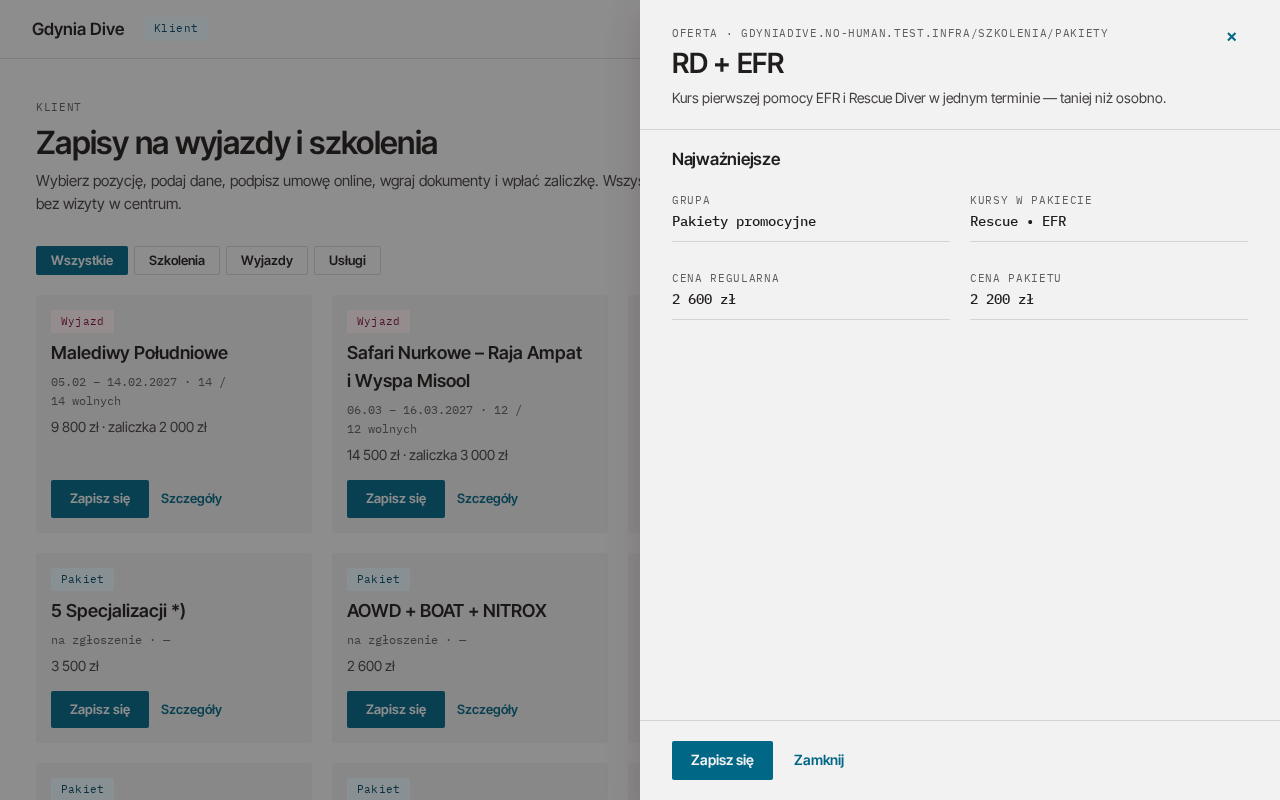
- Details (Szczegóły) next to an item opens a description of the offer in a side panel: date, price, requirements, free places and programme. You can also sign up from the panel.
- Click Sign up (Zapisz się) next to the item you want.
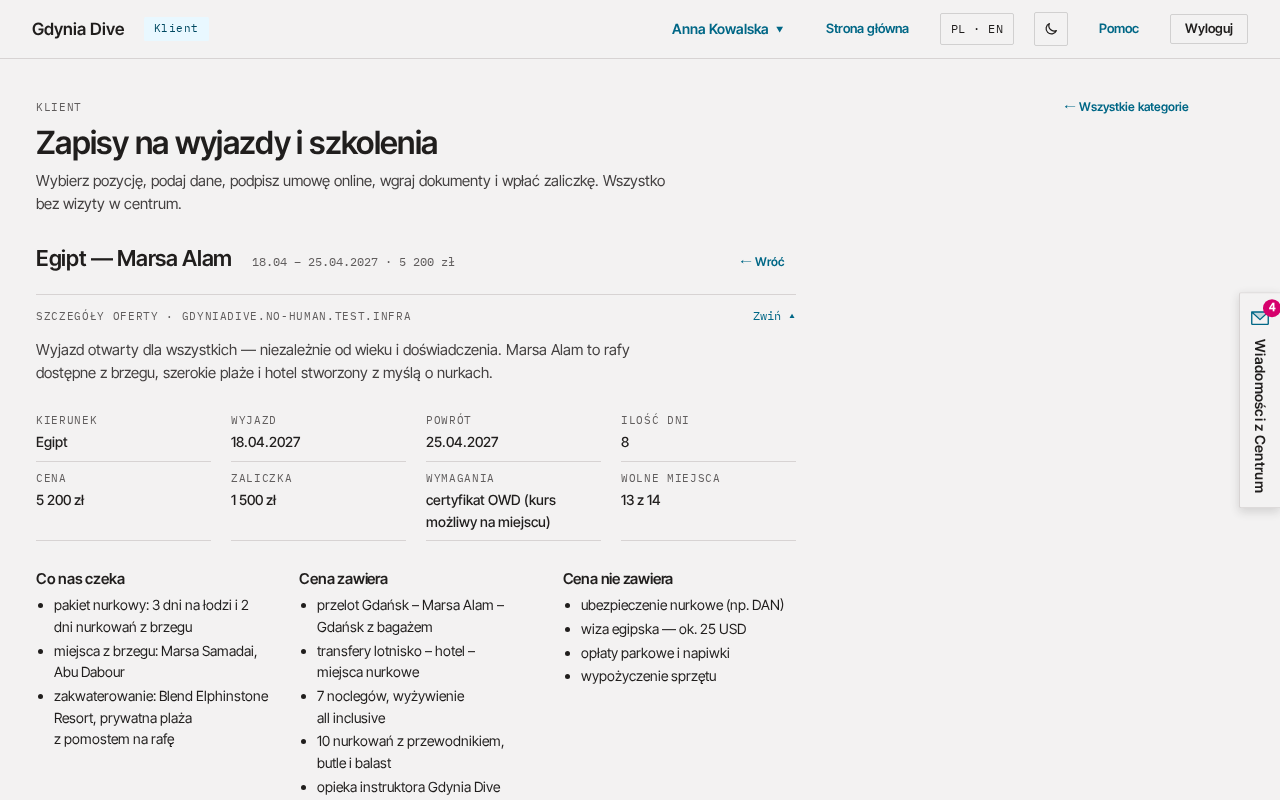
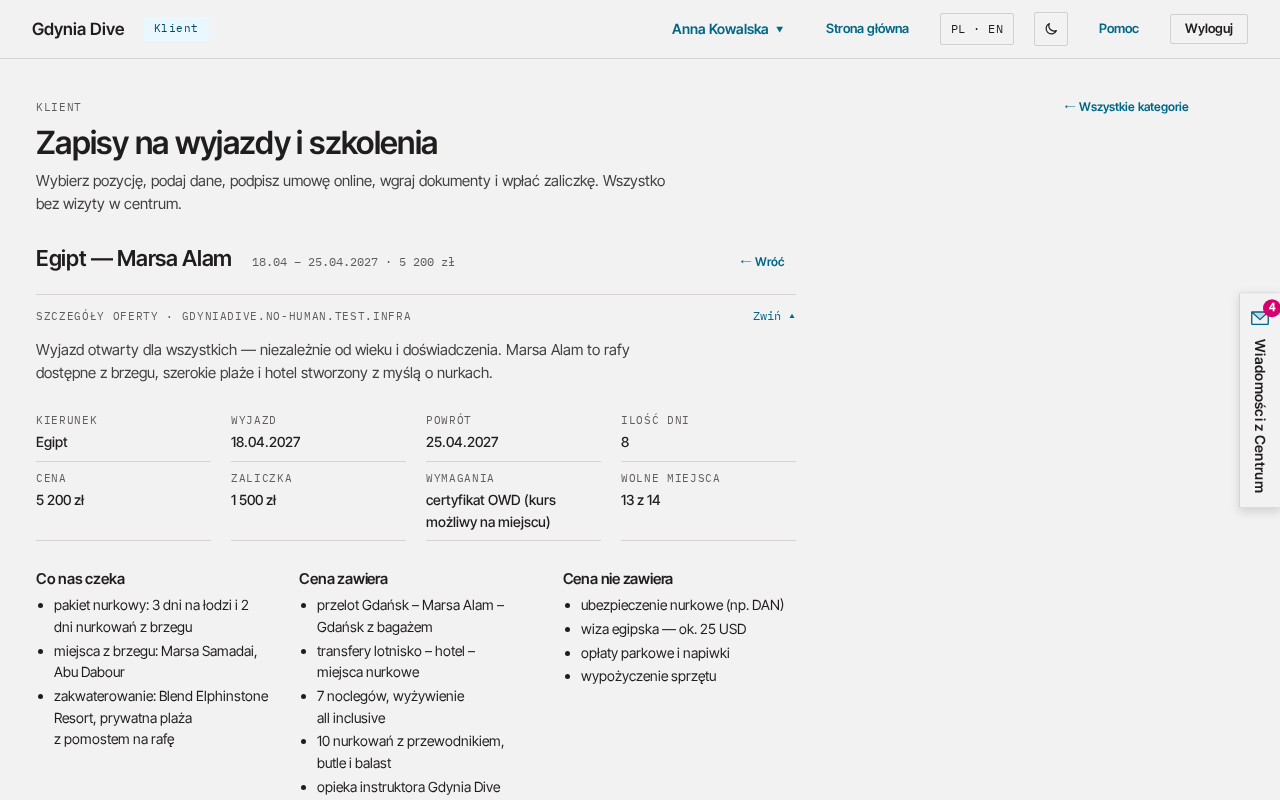
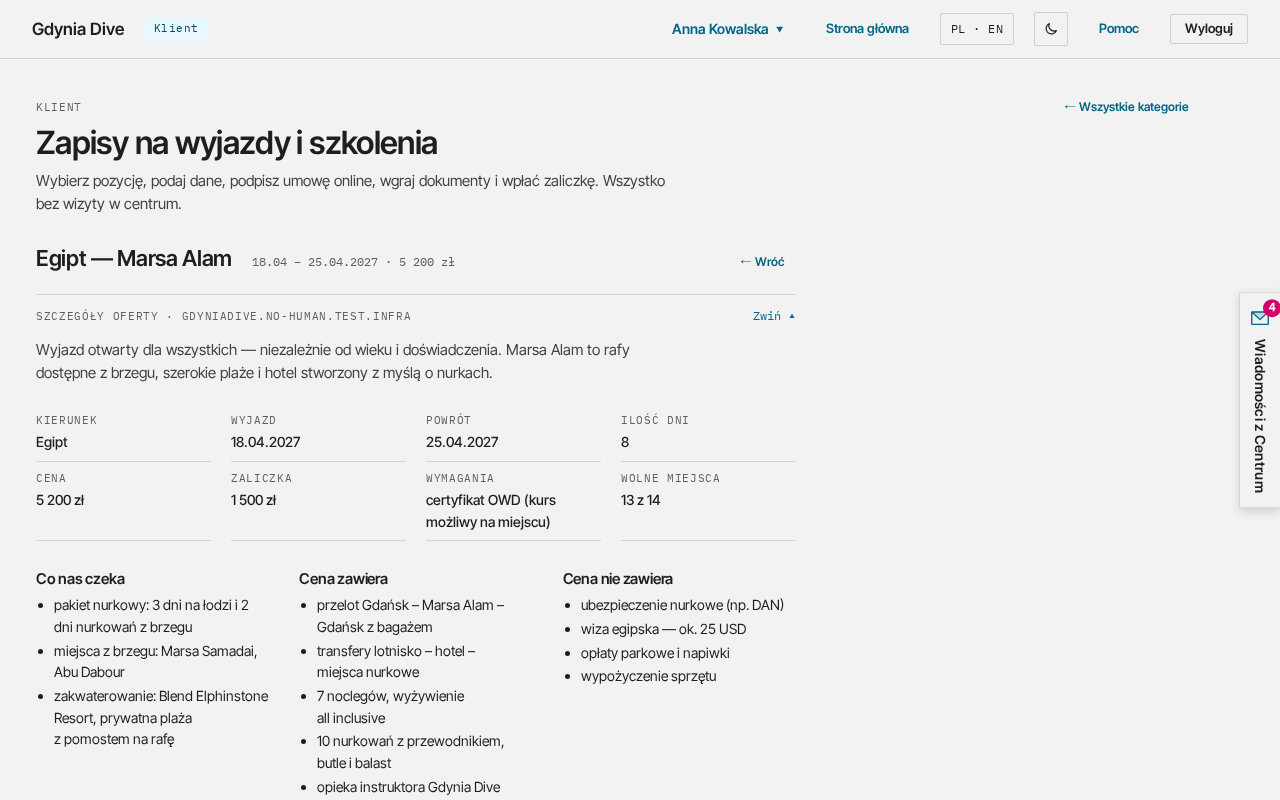
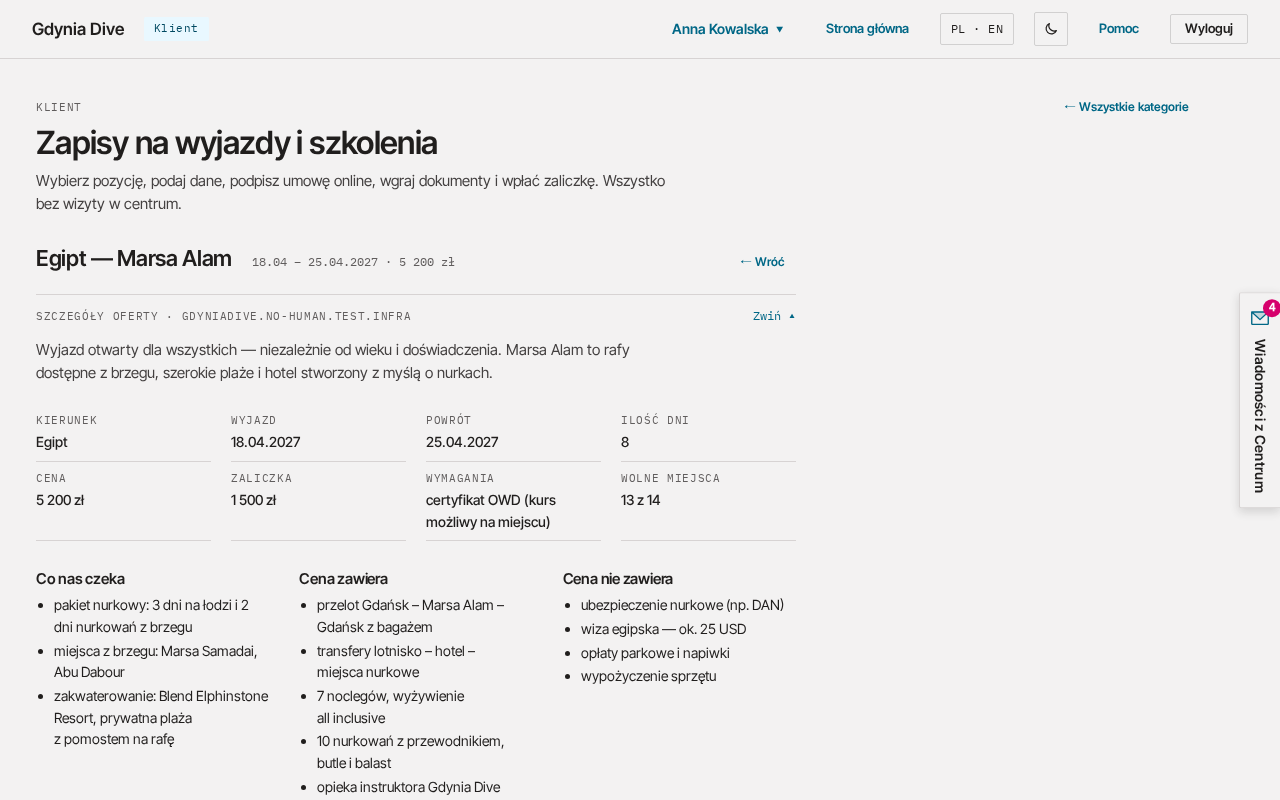
When the offer has a description on the website, the same description is in the wizard, in the collapsible Offer details (Szczegóły oferty) block. Without a description the wizard does not show this block.
← Back (← Wróć) next to the title in the wizard and Back (Wstecz) in step 1 return to the item's tab (packages to Courses).
The sign-up button on a course or trip page also leads to the wizard. If you do not have a profile yet, you create one first and then return to the sign-up.
Step 1: Details and extras
The step starts with the Participant details (Dane uczestnika):
- without saved details you fill in the form (full name, date of birth, phone, e-mail, address, certification, number of dives, passport, equipment sizes, emergency contact). The ticked "Save the details in my profile for future sign-ups" (Zapisz dane w moim profilu na kolejne zapisy) box keeps them in My details (Moje dane);
- with saved details you see a summary and the Edit details (Edytuj dane), I am signing up someone else (Zapisuję inną osobę) and Delete saved details (Usuń zapisane dane) buttons (chapter My details).
You give your passport only when signing up for a trip (including an organised tour). For a course, package or service there is no passport field, and the passport saved in My details is not passed on.
The date of birth is required only where it is needed. The phone and e-mail in this form are the participant's contact details; the SMS code for signing the contract always goes to the phone in your account. When the item has several dates, choose the Date (Termin) from the list.
Below, in the Also for this booking (Dodatkowo do tej rezerwacji) part, tick extras if you want them (e.g. insurance, nitrox or equipment rental). Extras marked "included" (w cenie) cost nothing.
Click Next (Dalej). Only then is the sign-up submitted and given a number.
Step 2: Online contract
- Read the contract in the frame.
- Tick "I accept the contract, the general terms of participation and the cancellation terms." (Akceptuję umowę, ogólne warunki uczestnictwa i warunki rezygnacji.). Consent to the newsletter is optional.
- Click Sign with SMS code (Podpisz kodem SMS). We send a code to the number in your account.
- Enter the 6 digits in the SMS code (Kod z SMS) field and click Sign with SMS code (Podpisz kodem SMS) again.
After signing you will see the message "Contract signed. A copy will be sent to your e-mail and to the Documents section of the item details." (Umowa podpisana. Kopia trafi na e-mail i do sekcji „Dokumenty” w szczegółach pozycji.).
SMS code
| Rule | Value |
|---|---|
| code validity | 5 minutes |
| attempts to enter one code | 3 |
| wait before sending another code | 60 seconds |
| codes per number | at most 3 per hour and 10 per day |
| numbers | Polish only (+48) |
The code did not arrive? After 60 seconds click Send the code again (Wyślij kod ponownie). When the limit is used up, the wizard shows when you can send the next code.
If the code has expired or you have used all the attempts, send a new code.
Step 3: Documents
The wizard shows the documents needed for this item, e.g. a medical statement, a copy of your certification, a passport scan or an insurance policy. For each one click Upload (Wgraj) and choose a file.
- Files: PDF, JPG, PNG or WEBP, each up to 10 MB.
- Before uploading the medical statement, tick the consent to processing health data.
You can send documents later in the Documents (Dokumenty) section of the item details. Details in the chapter Documents. Click Next (Dalej).
Step 4: Deposit
The step shows:
- Deposit to pay (Zaliczka do zapłaty): the amount of the first payment;
- Bank transfer details (Dane do przelewu): recipient, account number, transfer title and amount;
- Instalment schedule (Harmonogram rat): all instalments with their due dates.
Transfer the deposit using these details. The Office confirms a bank transfer once it has been booked; until then the booking is provisional. Click Finish sign-up (Zakończ zapis) to go to the details of this item (Courses, trips and services). More about instalments in the chapter Payments.
Interrupted sign-up
You can stop a sign-up at any step. You return to it from the start screen or from its category (e.g. Courses): it has the Unfinished sign-up (Zapis niedokończony) tag, and its details have a Finish sign-up (Dokończ zapis) button that opens the wizard at the step where you stopped. We hold the place for 5 days, and a day after you start the sign-up we remind you about it by e-mail.
You can also finish an unsigned sign-up from the Documents (Dokumenty) section of the item details: next to the contract there is a Sign (Podpisz) button that opens step 2 of the wizard.
Limit of open sign-ups
You can have at most 3 sign-ups without a signed contract. To sign up for another item, sign one of them or cancel it: Cancel (Zrezygnuj) in the details of an unfinished sign-up cancels it immediately and free of charge (Unfinished sign-up).