Courses, trips and services
Your sign-ups are in the Courses (Szkolenia), Trips (Wyjazdy) and Services (Usługi) columns of the start screen (items in progress) and in the views of these categories. In the category view the left column has two lists: In progress (W trakcie) and Completed (Zakończone). Each item in progress shows its status, that is the next step (e.g. "Status: pool session · 25.10", Status: …), and the progress. Click it (on the start screen or in the category view) or Open → (Otwórz →) to see its details, with everything you can do with the sign-up: upload documents, check payments, change the date, cancel and add services.
Packages are under Courses. The right column of the category view shows the offer you can sign up for (Online sign-up). A completed item has a document to download (e.g. a certificate) and a button for the next step, e.g. the next course or another voucher.
Item details
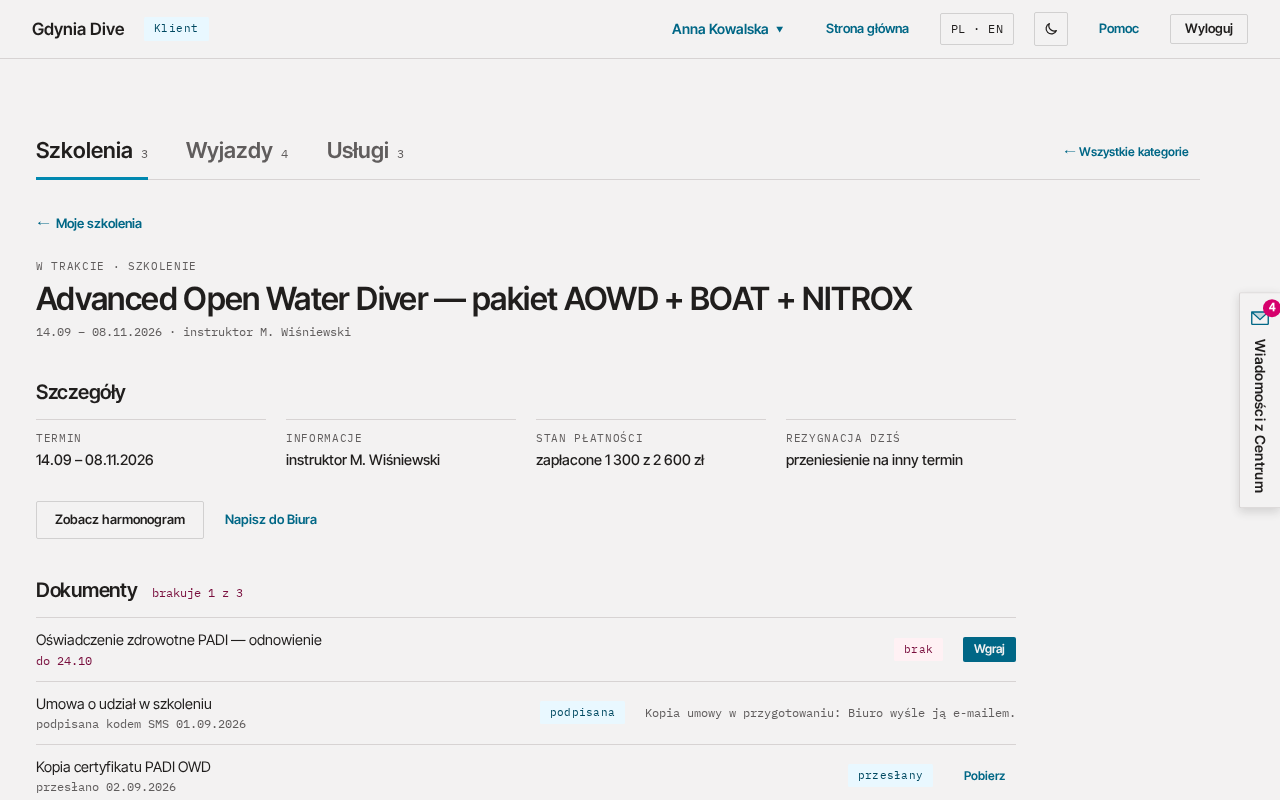
The details replace both columns; the tabs stay at the top. Go back to the category list with ← My courses (← Moje szkolenia, or trips, services), or to the previous view (e.g. the start screen) with the browser's Back button. Below the title are the dates and a short note, e.g. how many days are left until the flight. Then come the sections, one below another:
| Section | What it contains |
|---|---|
| Details (Szczegóły) | date and information; for courses and trips Payment status (Stan płatności: how much of the total you have paid) and Cancellation today (Rezygnacja dziś: what cancelling today would cost), for services Payments (Płatności). Below are buttons, e.g. See the schedule (Zobacz harmonogram), and Write to the Office (Napisz do Biura) |
| Documents (Dokumenty) | first what is missing (Upload, Wgraj; Sign, Podpisz), then ready documents to download, e.g. the contract copy (Documents) |
| Payments (Płatności) | first instalments to pay (Pay, Zapłać, shows the bank transfer details), then booked ones (Payments) |
| Progress (Postępy w realizacji) | the steps of the sign-up and the course: ✓ done, ● in progress, ○ to do. For a course with modules also the modules passed with the instructor, e.g. "Theory: passed 3 of 5" (Teoria: zaliczone 3 z 5) and "to make up: 1" (do odrobienia: 1) |
| Change, cancellation and extras (Zmiana, rezygnacja i dodatki) | for courses, packages and trips: date change, cancellation, cancellation terms and extra services |
| Purchased extras (Dokupione dodatki) | for services: extras bought with the sign-up |
Next to each section heading there is a short summary, e.g. "1 of 2 missing" (brakuje 1 z 2) or "everything paid" (wszystko opłacone).
Unfinished sign-up
A sign-up whose contract you have not signed yet has the Unfinished sign-up (Zapis niedokończony) tag in the list. The details show the step where it stopped and until when we hold your place (5 days from the start of the sign-up).
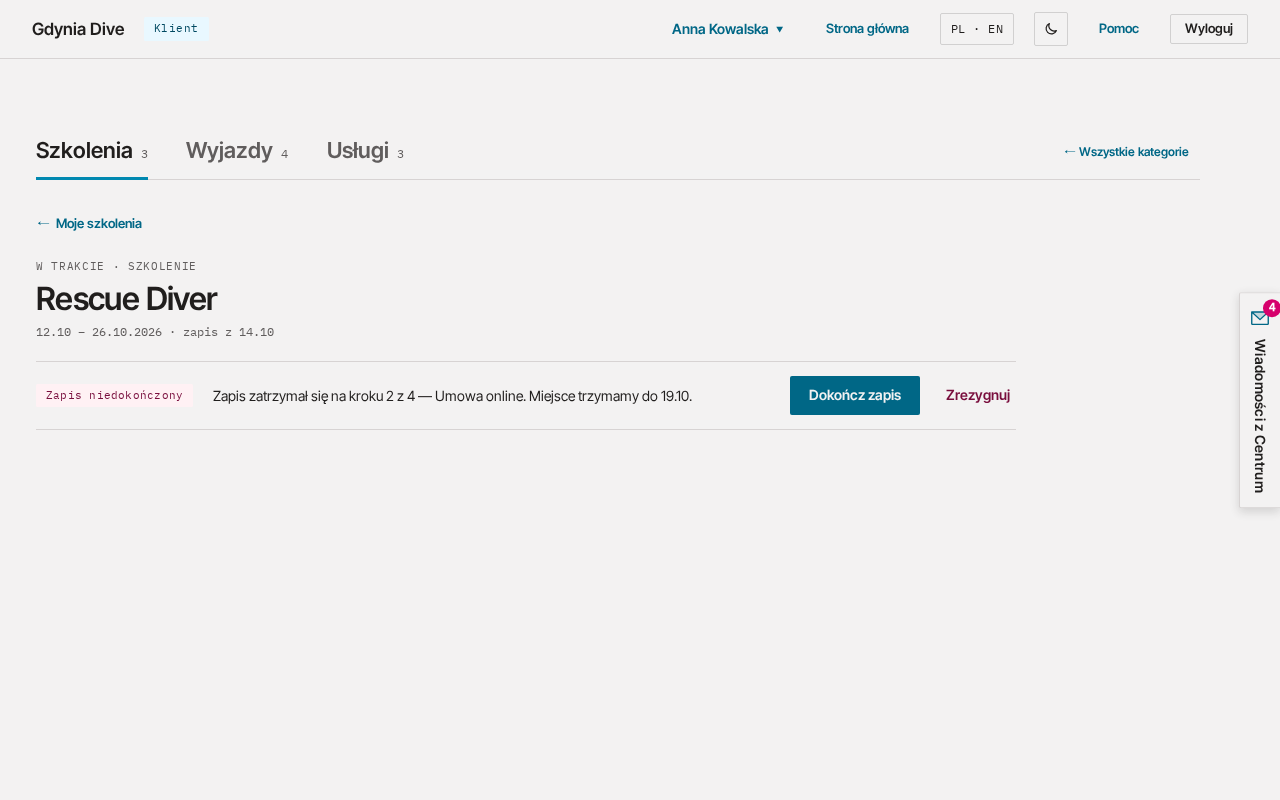
- Finish sign-up (Dokończ zapis) opens the wizard at the step where you stopped (Online sign-up).
- Cancel (Zrezygnuj) cancels the sign-up immediately and free of charge. Confirm with Confirm cancellation (Potwierdź rezygnację); the place goes back to the pool.
If a payment for the sign-up has already been booked, you send a request to the Office instead of an immediate cancellation (Send cancellation request, Wyślij wniosek o rezygnację).
Changing the date or option
- In the details click Change date or option (Zmień termin lub wariant).
- If other dates or options are available, you will see them as buttons. Click one. The change is free of charge up to 30 days before the start.
- In the Message to the Office (Wiadomość do Biura) field you can add details, e.g. a preferred room.
- Click Send request to the Office (Wyślij wniosek do Biura).
The Office confirms the change by e-mail and in your profile. Until then your date does not change.
Cancellation
- In the details click Cancel (Zrezygnuj).
- Read the calculation: Cancellation cost today (Koszt rezygnacji dziś) and Refund (Zwrot).
- Click Confirm cancellation (Potwierdź rezygnację).
Cancelling a signed sign-up is a request: the Office confirms the cost and the refund by e-mail.
What a cancellation costs
The cost depends on how many days are left until the start. The thresholds are in the contract, and the details show them in the Cancellation terms (Warunki rezygnacji) table for your item. Standard thresholds:
| Before the start | Trips | Courses |
|---|---|---|
| more than 60 days | refund of payments minus PLN 200 | full refund |
| 59–30 days | 30% of the price withheld | full refund |
| 29–15 days | 60% of the price withheld | refund minus 20% |
| 14–7 days | 80% of the price withheld | transfer to another date |
| less than 7 days | no refund | transfer to another date |
Some items have their own thresholds. The table in the details then shows exactly those.
How to read it:
- "refund of payments minus PLN 200" is calculated from what you have already paid;
- "N% of the price withheld" is calculated from the trip price. If you have paid less, the difference remains to be paid and the calculation shows it;
- "refund minus 20%" is calculated from your payments;
- "transfer to another date" means that instead of a refund you move the sign-up to another date.
Packages are treated like courses. For services, the cancellation terms follow from the service contract.
Extra services
The details of a course, package or trip have an Extra services (Dodatkowe usługi) section, e.g. diving insurance, nitrox or equipment rental.
- Click Add (Dodaj) next to the service you want.
- The button changes to "Added ✓" (Dodano ✓).
The amount is added to your next payment (the Payments section in the details, Płatności). A service you already have cannot be added a second time. The details of a service show Purchased extras (Dokupione dodatki) or "No purchased extras" (Brak dokupionych dodatków).
Confirming attendance at a class
Before a course class (e.g. 48 hours before a pool session) you may get a reminder by e-mail or SMS with a "Will attend / Won't attend" link. The link opens the page "Will you be at the class?" (Czy będziesz na zajęciach?) with the class name, date, time, place and participant. You do not need to log in.
- Click Will attend (Będę) or Won't attend (Nie będę).
- The page confirms your answer, e.g. "Saved: you will be at the class." (Zapisaliśmy: będziesz na zajęciach.).
The instructor leading the class and the Office see your answer. The link works once and only until the class starts. After the start or for a cancelled class you see "Link no longer valid" (Link nieaktualny). If your plans change, write to or call the Office.
Write to the Office
The Write to the Office (Napisz do Biura) button is in the Details (Szczegóły) section of every item and in the account menu (your name in the header). The Office replies by e-mail.
- Click Write to the Office (Napisz do Biura). A panel opens at the side of the page.
- In item details, Concerns (Dotyczy) is already set to this item. You can choose another topic: Payments (Płatności), Documents (Dokumenty) or Date change (Zmiana terminu).
- Enter the Message (Treść) and, if needed, add an Attachment (Załącznik; PDF, JPG, PNG or WEBP, up to 10 MB).
- Click Send (Wyślij).
Close the panel with Cancel (Anuluj), the Esc key or a click outside the panel. If you have already typed something, the page asks whether to discard the changes.
No items
If you have no sign-ups in progress in a category, the list shows "Nothing in progress." (Nic w trakcie.), and without completed ones "No completed items." (Brak zakończonych.). The offer you can sign up for is in the right column.